To prevent overselling across marketplaces, you need one system that collects stock from every supplier and warehouse you sell from, calculates a single sellable quantity per SKU, reserves units as orders arrive, and pushes that number (minus a safety buffer) to every channel on a schedule faster than your products sell. Multi-supplier inventory sync platforms do this job; Flxpoint is one example, pulling inventory from suppliers, warehouses and 3PLs, aggregating it per product, and syncing quantities and listings to channels such as Amazon, eBay, Walmart, Shopify and BigCommerce.
What does multi-supplier and marketplace inventory sync actually mean?
Most guides treat these as separate problems. In practice, they are one pipeline with two ends:
- Inbound sync: getting accurate quantities in from every source of stock, such as your own warehouse, a 3PL, and dropship suppliers or distributors that send feeds by API, EDI, FTP/SFTP or spreadsheet.
- Outbound sync: publishing one consistent, protected quantity out to every place you sell, including marketplaces, your storefront and B2B channels.
Overselling happens when either end is slow, wrong or disconnected from the other.
Why does overselling happen?
Overselling means accepting an order for a unit you cannot ship.
Sync lag between the real shelf and the listing
Every sync has a gap. Supplier feeds update on the supplier’s schedule (hourly, every few hours, or daily), and your listings update on yours. In that window, a fast-moving SKU can sell out at the source while your listings still show stock.
Multiple sources for the same product
When two suppliers and your own warehouse all carry the same item, you need rules for how their quantities combine. If the system sums all three but one supplier’s feed is stale, the total is inflated. If products are not matched correctly (for example, one supplier sends a UPC with leading zeros and another does not), the same item can appear as two products with two separate quantities.
Bundles and kits
A bundle is only as available as its scarcest component. If you also sell each piece on its own, every single-item sale reduces the kit’s true availability, so a kit tracked as a static quantity drifts out of sync.
Orders that have not been deducted yet
Between the moment an order is placed and the moment the supplier’s next feed reflects it, those units are still counted as available. Without a reservation step (often called committed stock), the same units can be sold twice.
Marketplace rules that raise the cost of a mistake
Marketplaces measure seller-cancelled orders and late shipments, and repeated cancellations can affect your account health, visibility and, in serious cases, your selling privileges. Each marketplace also has its own listing requirements, handling-time settings and update limits, so a one-size-fits-all quantity is rarely the safest choice.
What are the main ways to sync inventory across channels and suppliers?
There are four common approaches. Many businesses move through them in order as SKU counts, suppliers, and channels grow.
|
Approach |
Best for |
Pros |
Cons |
|
Manual spreadsheet or CSV updates |
Very small catalogs with one or two suppliers that send the same file format, and low order volume |
No software cost, full control, and easy to start |
Slow and error-prone. Sync frequency depends on staff time, and nothing reserves stock for open orders |
|
Entry-level automation tools (for example, Zapier for general workflows or Inventory Source for dropship supplier feeds) |
Sellers moving off spreadsheets who want a quick, low-cost way to automate one or a few feeds into a store |
Quick setup, lower monthly cost, and no developers needed |
Each workflow or feed is set up on its own, so combining stock from several suppliers and warehouses, adding buffers, and reserving open orders are limited. Plans are capped by usage, such as integration and SKU counts on Inventory Source |
|
Dedicated multi-supplier inventory and listing platforms (for example, Flxpoint) |
Retailers, distributors, and brands combining owned stock with dropship suppliers across several channels |
Built-in supplier connectors and file mapping, multi-source aggregation, quantity rules, committed stock, and order routing |
Higher cost than entry-level tools, upfront setup of rules and mappings, and more than a single-warehouse seller needs |
When is each approach the right choice?
If you have a small catalog and one or two suppliers that send the same file format, manual updates can work. If you’re ready to automate one or a few supplier feeds into a single store, an entry-level tool like Zapier or Inventory Source is a quick step up. If several suppliers or warehouses feed the same SKUs into multiple marketplaces, a dedicated multi-supplier platform handles inbound and outbound sync in one place.
How does Flxpoint sync inventory from multiple suppliers to multiple channels?
Flxpoint works left to right: your sources on the left, your product catalog in the middle, and your channel listings on the right. Here’s how each step works:
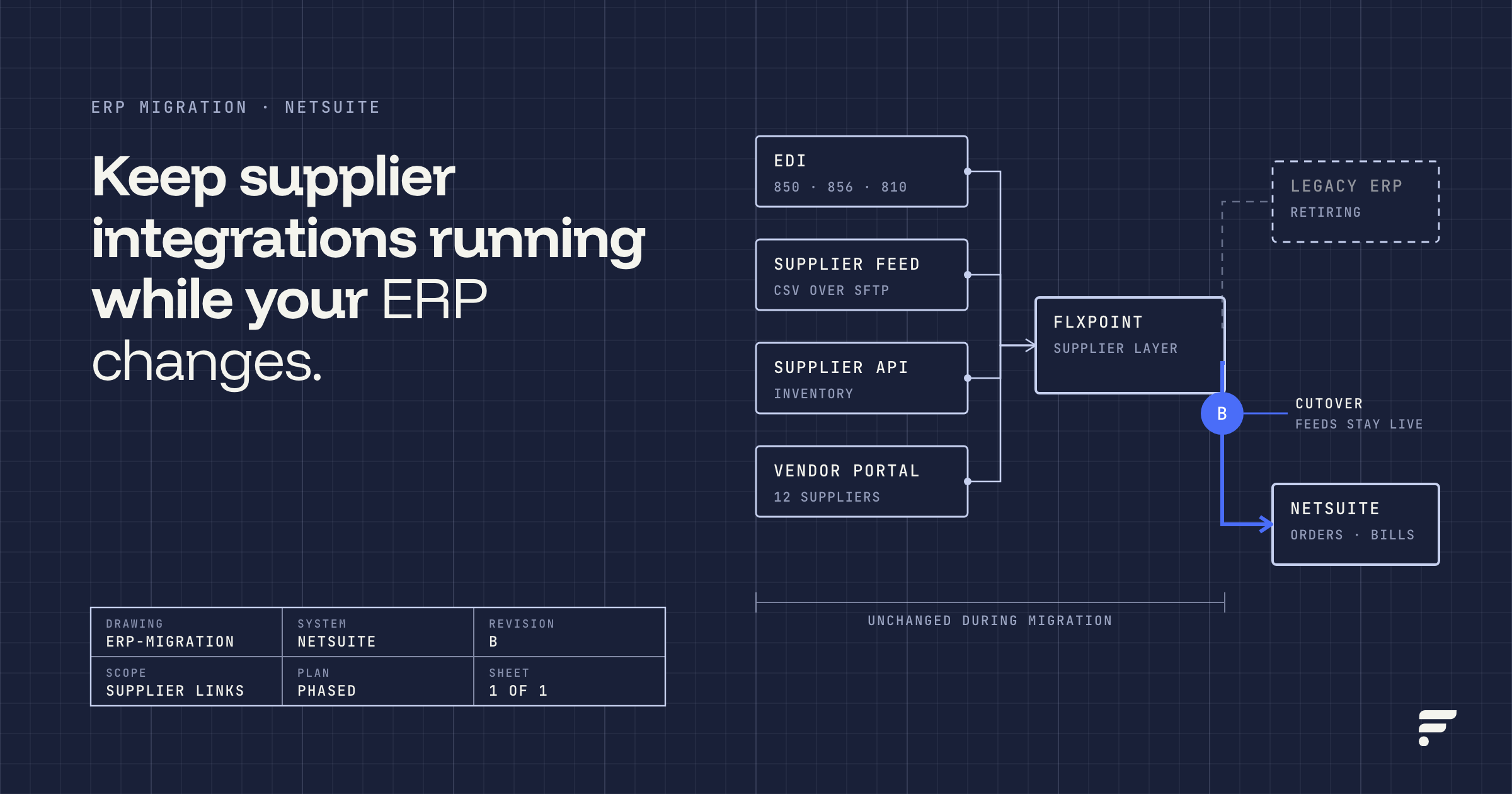
- Sources: Each supplier, warehouse, or 3PL connects to Flxpoint as a source through a ready-made integration, API, EDI, or FTP/SFTP file mapping. Every plan includes ready-made vendor integrations, and our team can build custom API and EDI integrations when you need them.
- Two inventory feeds: a Primary import brings in full product content plus cost and quantity, and a Secondary import updates price and quantity only. Flxpoint’s docs recommend running Secondary more often than Primary, every 1 to 4 hours when the supplier supports it.
- Product matching: When the Build Master Catalog job runs, we match products from different sources on UPC, GTIN, EAN, or MPN plus brand, and link them to one catalog record.
- Aggregation: You choose how quantity across linked sources is calculated (Lowest, Highest, Average, or Sum), with an option to skip sources that are out of stock. By default, quantity is the sum of all active sources, and we leave out sources that are paused, disabled, or whose latest inventory sync failed.
- Committed stock: When you turn it on for a source, we reserve units on that source’s open fulfillment requests. Each source’s Available Quantity (its quantity minus committed units) is what syncs to your channels, not the raw feed number.
- Quantity rules: IF/THEN rules, set globally or per channel, can expose a percentage of stock, cap quantity per SKU, set quantity to 0 below a threshold, or delist and relist products automatically. Rules run each time the Sync Listings or Publish Listings job runs, not instantly.
- Listing guardrails: List Price Protection, on by default for new channels, blocks a listing from syncing if estimated cost is missing or zero, the list price is at or below estimated cost, or no inventory is linked.
- Kits and bundles: A bundle’s availability is set by its lowest available component. When a bundle is ordered, we use its component SKUs to find the right source for each item and create fulfillment requests, and tracking goes back to the channel once every component has shipped.
The same pipeline routes each order to the right supplier, warehouse, or 3PL. Learn more about the listing side on our multi-channel listing and PIM page and the supplier side on our dropship and marketplace page.
How do I set up inventory sync to prevent overselling, step by step?
These steps apply whatever tool you use. Where Flxpoint has a specific setting, it is noted.
Step 1: Map every SKU to one master record
Pick one identifier as your master SKU and map every supplier SKU, marketplace SKU and listing to it. Match on a global identifier (UPC, GTIN, or EAN) where you can, and on MPN plus brand where you can’t. Use MPN plus brand carefully, since broad match rules can link the wrong products. Before going live:
- Check supplier feeds for duplicate SKUs on separate rows (Flxpoint keeps only the first and may show a duplicate key error).
- Normalize identifiers, such as leading zeros on UPCs, so the same product matches across suppliers.
- Spot-check 5 to 10 SKUs per source across price ranges and stock levels.
Step 2: Decide how sources combine and which one comes first
For each product, decide whether you want to show the combined stock of all suppliers (Sum), only what your most conservative source reports (Lowest), or another option such as Highest or Average. A common pattern is to sum stock from reliable sources so you represent your full selling potential, while omitting out-of-stock sources. Then set a source priority so orders route to your preferred supplier or warehouse first. In Flxpoint, aggregation rules set the quantity math, and source priority and routing settings decide who fulfills.
Step 3: Add buffers and safety stock where risk is highest
A buffer hides a few units from channels so a stale feed does not turn into an oversell. Size it by two factors: how fast the item sells and how often the source updates. Flxpoint’s documentation gives a starting point: a supplier updating every 4 hours with fast-moving products may need a buffer of 5 or more units, while one updating hourly with slow movers may need 1 to 2. Then layer channel rules on top, such as:
- Expose only part of stock on a high-risk channel (for example, 80%).
- Cap quantity per SKU (for example, 5) on channels where cancellations are costly.
- Set quantity to 0 when it falls below a small threshold (for example, under 3).
Step 4: Turn on reservations for open orders
Reserve units as soon as an order is accepted so they cannot be sold again before the next feed arrives. In Flxpoint this is committed stock, enabled per source, which reserves units when a fulfillment request is generated for the order.
Two cautions: don’t enable it on a source that never updates quantity (commitments would never release), and don’t enable it where the source, often a 3PL, already deducts open orders, or you’ll double count.
Step 5: Set sync frequency to match sell-through
Your oversell window equals the age of your oldest data. Schedule lightweight price and quantity updates as often as each supplier allows, and run full catalog imports less often. Make sure the outbound listing sync runs at least as often as the inbound feeds, otherwise fresh supplier data sits unused. Remember that most rules apply when the listing sync job runs, so changes to rules need a sync before they take effect.
Step 6: Handle discontinued and delisted items on purpose
Discontinued items are a quiet source of oversells because they often disappear from a supplier feed instead of showing zero. Decide in advance what happens when that occurs:
- Set quantity to 0 or delist when stock drops below a threshold, and pair every delist rule with a relist rule so items come back when restocked.
- When you deactivate a source, check whether listings should be removed, since deactivating a source doesn’t automatically delist products from your channels. Flxpoint can archive the affected items and set their quantity to 0, and other active sources for the same product keep contributing stock.
Step 7: Test, then watch the first two weeks closely
Start conservative, monitor oversells by SKU and source, and loosen buffers only on items with a clean record. A repeating oversell on one SKU usually points to a reservation setting or a slow feed for that item.
What does this look like with real numbers?
The following is an illustration with made-up numbers, not customer data. It shows how each layer changes the quantity a channel sees.
A retailer sells a cordless drill kit on Amazon, eBay and its Shopify store. Three sources carry it:
| Source | Feed frequency | Reported quantity | Source buffer | Open orders (committed) | Sellable |
|---|---|---|---|---|---|
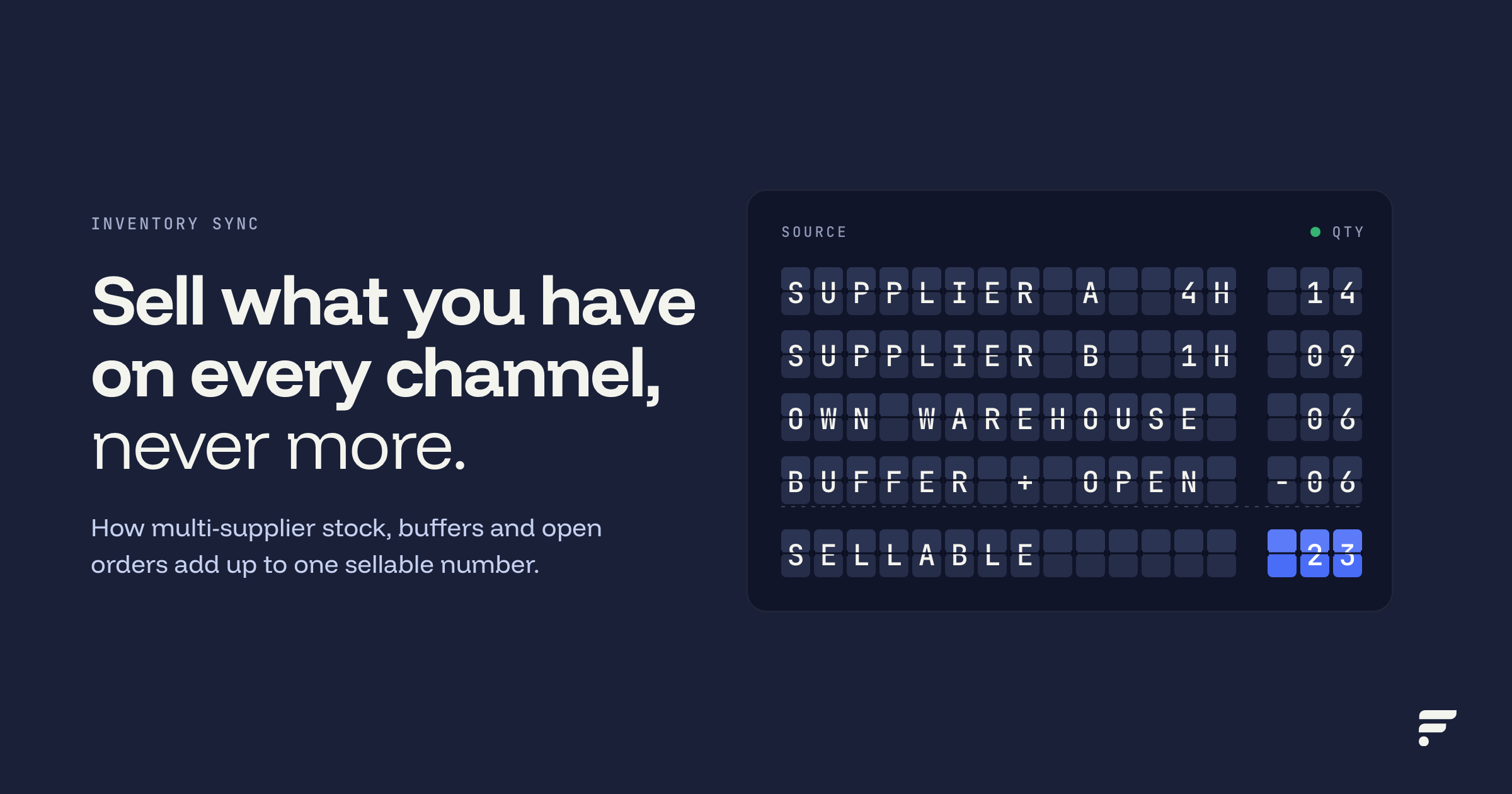
| Supplier A (distributor) | Every 4 hours | 14 | 3 | 0 | 11 |
| Supplier B (dropship vendor) | Hourly | 9 | 1 | 0 | 8 |
| Own warehouse | Synced from WMS | 6 | 0 | 2 | 4 |
| Total (Sum) | 29 | 4 | 2 | 23 |
Without any protection, every channel would show 29. With source buffers applied before quantities are summed and committed stock reserved on each source, the protected pool is 23. Channel rules then shape what each marketplace sees:
- Amazon: expose 80% of the pool, so 18 (rounded down in this illustration).
- eBay: cap at 5 units per listing, so 5.
- Shopify: show the full protected pool, so 23.
- All channels: if the pool falls below 3, set quantity to 0.
Now the stress test. Halfway through Supplier A’s 4-hour feed window, Supplier A sells out to other retailers. Its real stock is 0, but its last feed still says 14, and nothing changes in your system until the next feed arrives. The useful question is how many listed units no longer exist (phantom units):
- Unprotected: 16 phantom units. All 14 of Supplier A’s units are gone, and the 2 warehouse units already promised to open orders are still being offered again.
- Protected: 11 phantom units. Reservations remove the 2 double-sold warehouse units and the buffer hides 3 of Supplier A’s units, but its other 11 are still stale.
Protection cut the exposure by about a third, but it did not remove it, and that is the honest lesson. A buffer of 3 is too small for a fast-moving item on a 4-hour feed. The fixes, in order of impact:
- Shorten the window: ask Supplier A for a lighter price and quantity feed every hour, or more often if they support it.
- Raise Supplier A’s buffer for this SKU, or show only part of its stock until its feed is faster.
- Route orders to the sources with fresher data first, so a stale source is the last one to receive orders.
The point of the example is not the exact numbers. Buffers cover part of the feed gap, reservations cover the order gap, channel rules let you take less risk where mistakes cost more, and feed frequency decides how big the gap is in the first place.
Which KPIs should I track to know inventory sync is working?
- Oversell rate: orders you could not fulfill as placed, divided by total orders. Track by channel, source and SKU.
- Seller-cancelled order rate by marketplace: compare against each marketplace’s published targets.
- Inventory data age: time since the last successful quantity update for each source. Alert on any source that misses its schedule.
- Sync job failure rate: failed inbound and outbound jobs per day, and how long each stayed broken.
- Stockout rate and buffer cost: listings showing 0 while some real stock existed. Buffers that are too large hide sellable units.
- Unmatched or duplicate SKUs: products that failed to link to a master record.
- Listings blocked by guardrails: items held back for missing cost, price at or below cost, or no linked inventory.
Inventory sync checklist
- Every supplier, warehouse and 3PL is connected as its own source.
- Each source has a fast price and quantity update scheduled as often as the supplier allows.
- Supplier feeds are checked for duplicate SKUs and normalized identifiers.
- Every listing maps to one master SKU, matched on UPC, GTIN, EAN or MPN plus brand.
- A quantity aggregation rule (Lowest, Highest, Average, or Sum) is chosen, and out-of-stock sources are omitted.
- Source priority and routing are set so orders go to the preferred source first.
- Buffers are sized by sell-through speed and feed frequency.
- Channel rules are set for exposure percentage, caps and zero-out thresholds where cancellations are costly.
- Reservations (committed stock) are enabled only on sources that send regular quantity updates and do not already deduct open orders.
- Bundles calculate availability from components, not a static number.
- Every delist rule has a matching relist rule.
- A plan exists for discontinued items and deactivated sources.
- Alerts fire on failed or late sync jobs.
Frequently asked questions
How do I prevent overselling across multiple marketplaces?
Manage inventory in one system that publishes the same protected quantity to every marketplace. Reserve units when orders arrive, keep a buffer sized to how fast items sell and how often your data updates, and use per-channel rules (exposure percentages, caps, zero-out thresholds) on channels where cancellations hurt most. Platforms such as Flxpoint combine these steps with supplier feeds and order routing.
How do I sync inventory from multiple vendors into one store?
Connect each vendor as a separate source using whatever they support (API, EDI, FTP/SFTP or spreadsheet), match their products to one master SKU using UPC, GTIN, EAN or MPN plus brand, and choose how quantities combine, such as summing all in-stock sources. Then sync that combined quantity to your store and marketplaces on a regular schedule.
How do I centralize product listings and inventory in one place?
Use a product catalog that sits between your sources and channels. Supplier data flows into the catalog, you control titles, attributes, pricing and quantity rules there, and the catalog publishes channel-specific listings. This is the role of a multichannel listing and PIM tool; Flxpoint combines it with supplier inventory sync and order routing.
How often should inventory sync run?
As often as your fastest-selling items require and your suppliers allow. Flxpoint’s documentation recommends lightweight price and quantity updates every 1 to 4 hours where a supplier supports it, with full product imports run daily or less often. Your outbound listing sync should run at least as often as your inbound feeds.
What is an inventory buffer, and how big should it be?
A buffer is a number of units you hold back from channels to absorb sync lag. Size it by sell-through speed and feed frequency: fast movers on slow feeds need larger buffers, slow movers on fast feeds need small ones. Start conservative and reduce buffers on SKUs with no oversells.
Does real-time inventory sync eliminate overselling?
Not on its own. Your listings can only be as current as your slowest data source, and many suppliers update on a schedule rather than instantly. Fast syncing narrows the window, while buffers and order reservations protect you inside it.
How much does a multi-supplier inventory sync platform cost?
Costs range from free channel-native tools to enterprise contracts. Flxpoint’s Business plan starts at $699 per month billed annually, with Pro and Enterprise plans quoted on request (see flxpoint.com/pricing). Compare total cost against the staff time and cancellation costs your current process creates.
How do I get started?
Start with the checklist above: connect every source, map every SKU to one master record, and put buffers and reservations in place before you add channels or suppliers. If you combine owned stock with dropship suppliers across several marketplaces, a dedicated platform will usually save more time than it costs. Flxpoint is rated 4.7 on G2 from 100+ reviews, and customers like ScreenSkinz report 95% time saved on manual tasks after automating inventory and order workflows.
To see how Flxpoint would aggregate your suppliers and protect your channel quantities, book a demo.